Google Drive was my all time favorite. Easy, fast, stable. Particularly Google Photo was very very good. It’s search function is absolutely a beast. It can find the content of a photo in milliseconds. For example, when I type bus, it shows all the photo that have bus, vehicles etc. Pretty impressive but at the same time that means it collects a lot a lot of information.
Why use a self-host server?
Is my data mine or Google’s?

According to Google Drive’s service agreement: 1
We will not share your files and data with others except as described in our Privacy Policy.
Google Privacy policy 2
For external processing
We provide personal information to our affiliates and other trusted businesses or persons to process it for us, based on our instructions and in compliance with our privacy policy and any other appropriate confidentiality and security measures.
For Legal Reason
We will share personal information outside of Google if we have a good-faith belief that disclosure of the information is reasonably necessary to:
Respond to any applicable law, regulation,legal process or enforceable governmental request.etc.
…… (very long….)
How safe is my data ? How do Google use my data ? My photo? My videos? My documents ? Depends if you TRUST Google or not. Trust is a problem in 21st century.
Okay, Google, Apple, Microsoft etc, these tech giants are trustworthy. But, what if, what if my Google account is hacked ? What if my google account is locked and I am unable to recover?
My Google and IG account was hacked a while ago even I have enable 2FA. Fortunately, I was able to recover it. But what if I can’t?
How did I build a home server?
My data is mine, but is controlled by Google. So why not keep it myself instead of in other’s hands?
I have approx 700GB of photos and videos. Mostly me and family photos starting from 1990s. These are invaluable stuff that cannot be brought and cannot be replaced if lost.
To build an alternatives of Google Drive / Google Photo, accessible from Internet / anywhere, is not a simple task. First, I need is a piece of hardware, connecting my data (Harddrives) and plugged into the Internet.
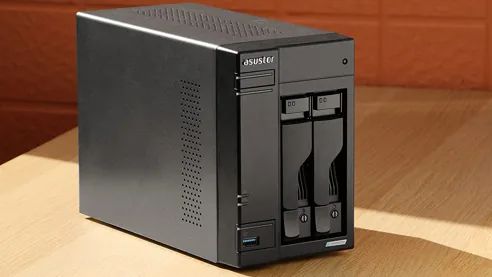
Network attached Storage (NAS) is a very good alternative of Google drive / Photo, but costy. A two bay Synology NAS with a decent CPU and RAM cost AUD$300-500, excluding harddrives. And I still need the Synology app / software to access my data. (Actually Taiwan based Synology said they don’t access customer’s files on NAS. They only gather information of users, device setting etc. 3 )
But a NAS is just a NAS, can it do more than just hosting files, media server? Seems not.
Hardware

I have an unused PC motherboard +CPU + RAM sitting under my bed. It is a Gigabyte H61M S2H, originally paired with a Intel Celeron G620 CPU and 4 GB DDR3 RAM which I brought in 2012 January.
I was using it until 2022. The CPU was upgraded in 2018 with a used I5 3570s and added another used 4GB DDR3 ram brought from Ebay, paired with a SSD, make it total 8GB ram, barely enough for an modern OS.
H61M S2H
- Support 3rd Gen. Intel® 22nm CPUs and 2nd Gen. Intel® Core™ CPUs (LGA1155 socket)
- PCI version 3.0
- Chipset
Intel® H61 Express Chipset - Memory
2 x 1.5V DDR3 DIMM sockets supporting up to 16 GB of system memory - LAN
1 x Atheros 8151 chip (10/100/1000 Mbit) - Chipset:
4 x SATA 3Gb/s connectors supporting up to 4 SATA 3Gb/s devices - MicroATX form factor
The motherboard is OLD, but equipped with all the basics of a PC: SATA ports, 1Gb LAN, DDR3 ram.
But a 3rd Gen i5….
14th Gen i5 is already on the market for a year or so. How old and how slow is a 3rd Gen i5 CPU? 14th Gen 14400 CPU is 440% faster than 3570s.

Still, this old fella is capable of being a server. Most importantly, I don’t need to invest any money. (I have an unused ATX 500w PSU also). So literally this project is FREE , exclude the cost of storage HDDs.
A computer case ?
Where to put a home server inside a home? Technically anywhere is OK as long as there are WIRED network connection to a router and then the Internet/ISP service. Wifi is nothing comparable to a standard 1Gbps Cat6 network.
My Internet connection box is just behind the TV cabinet. I can hide the server inside the cabinet and no one would notice. All I need is some openings at the back for cables and ventilation.
But the cabinet space is really tight. The size is 35cm(D), 25cm(W) and 45cm(H). The smallest mATX PC case on the market not even fit into it unless I go to ITX. But,
I want to keep as low cost as possible.
In fact, a computer case is not absolute necessary. The unit actually sit inside a cabinet with door close. So it does not matter how it looks, as long as it served it’s function.
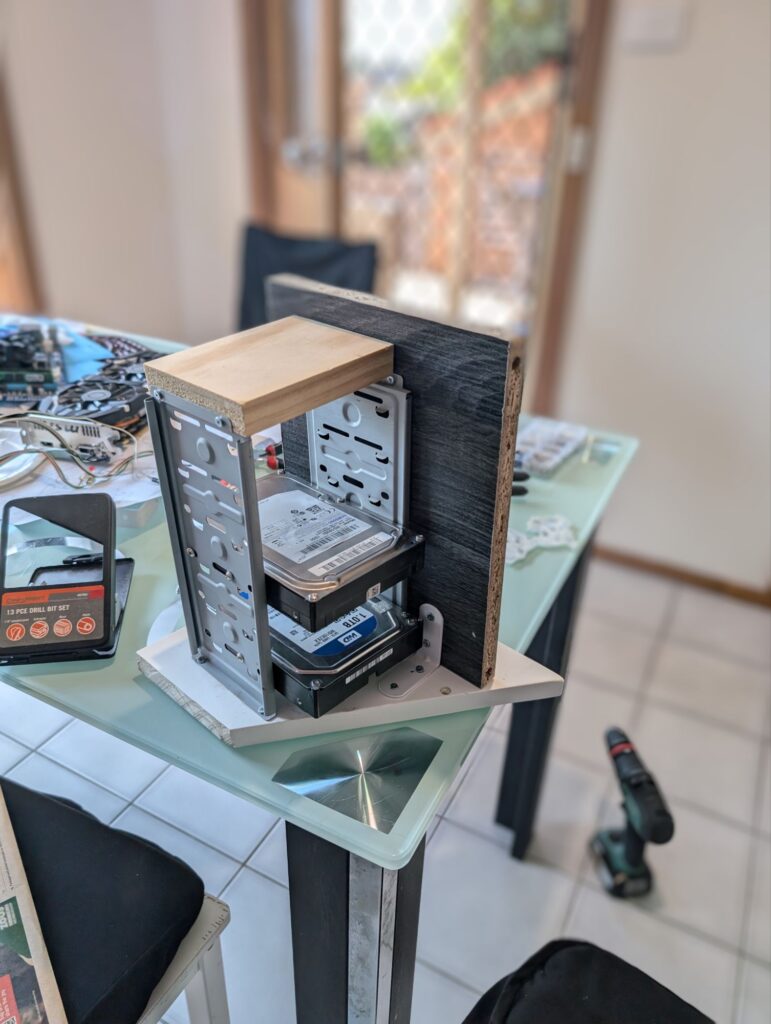
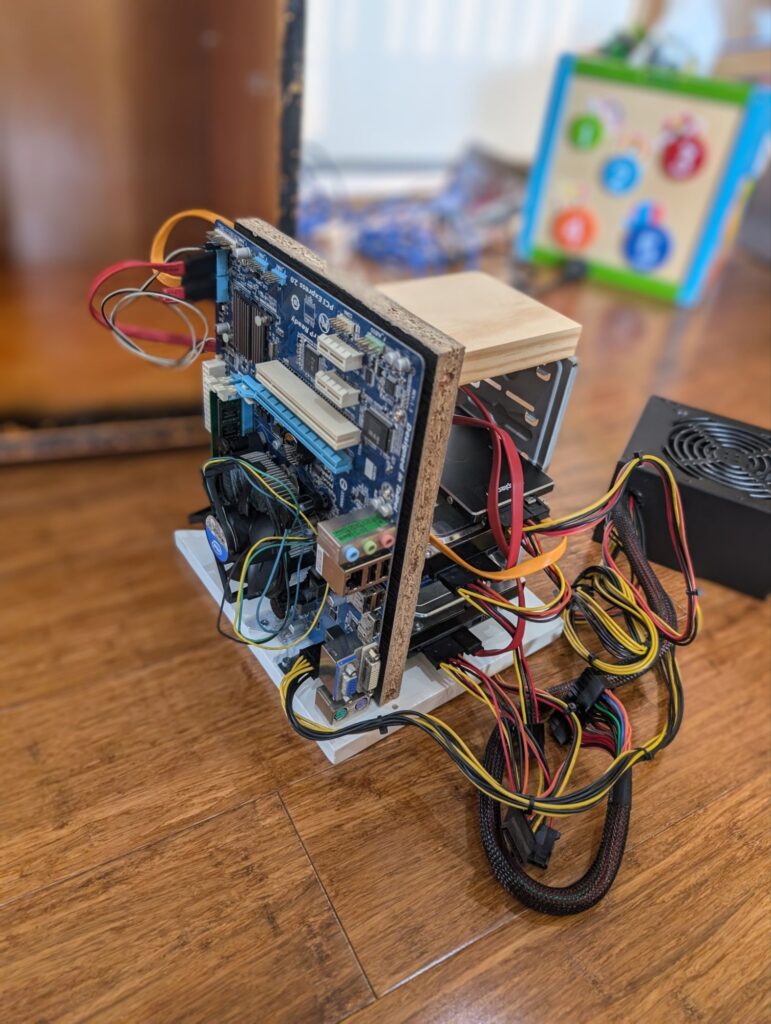
I custom made a PC stand from leftover of my previous wood work and a HDD cage from an unused old PC case. It perfectly sit inside the cabinet. Then I glue the PSU on to it. Not pretty but works. So hardware part of the server is ready.


Storage
I am using two WD 4TB Red 5400RPM SATA HDD. Why two ? I mentioned I have 700GB of photos and others files did not exceed 1.2TB.
Data redundancy is ESSENTIAL when running a server. Everyone knows that HDD / SSD storage do not last forever, even though modern storage is very reliable. A well-know 3-2-1 rule is crucial in the event of disk failure.
--- 3 Copies of Data
--- 2 Different Media – Use two different media types for storage. This can help reduce any impact that may be attributable
--- 1 Copy Offsite
Ironically, the above statment is quote from Seagate website. Certain model of Seagate HDDs are famous for their low reliability. That’s why the 3-2-1 rules are important 😅.
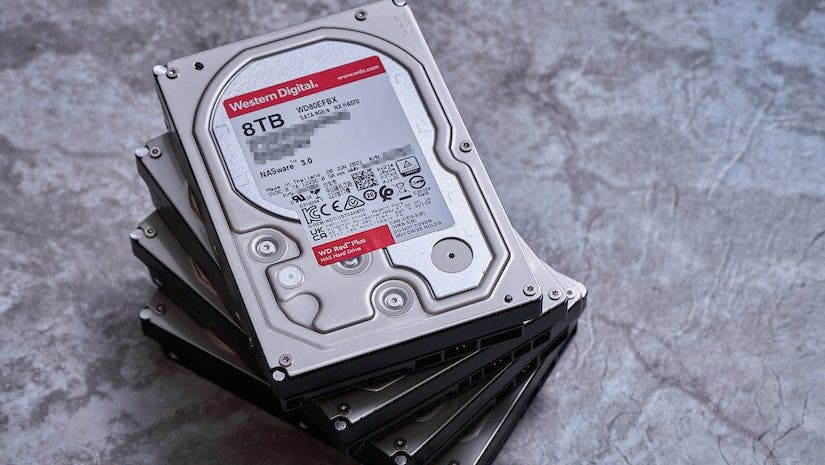
I have been using PC for 25+ years. My first PC was a 386SX. My first DIY build PC was a Pentium MMX 233Mhz in 1998. I did remember that there was one time my HDD was dead and I loss data, may be around 1999. Currently I have couple of 1TB HDDs power on hours 5000 hours / 2300 power on cycle / Load/Unload Cycle Count 2300 are still running normal. There is another old HDD power on hours 44564 (5 yrs 24/7) but still good.
I am not sure the meaning of rule number 2 ( two different media). All I can think of is HDD and Blueray / DVD storage. Later is definitely impossible nowadays. A DVD disc is 4.7GB , so I would need 300 DVD disc ? Dual layer Blueray disc has capacity of 50GB but still need 25 of them. May be the different media means cloud and local storage?
But I think I am Okay with the first rule, three copies of data. Therefore I brought two 4TB HDD. I also have the original copy in my PC and I have fourth copies in old HDD swhich are 24/7 offline unless I plugging them for backup.
I had tried software RAID0 (mdadm) in Debian. It is not really user friendly as I am not an IT expert. I am not confident to use it. I found that I was very likely loosing all data if I misconfigured mdadm. Therefore I am using a very traditional way to do it: schedule copy.
There are some very handy tools in Debian for backup. I am using “Timeshift” and “Back In Time”.
Timeshift is crucial when there are errors in the system. For example, If I screwed up the Debian system when I installed some programs or edited some configuration files. All I need to do is just restore previous backup of the system.
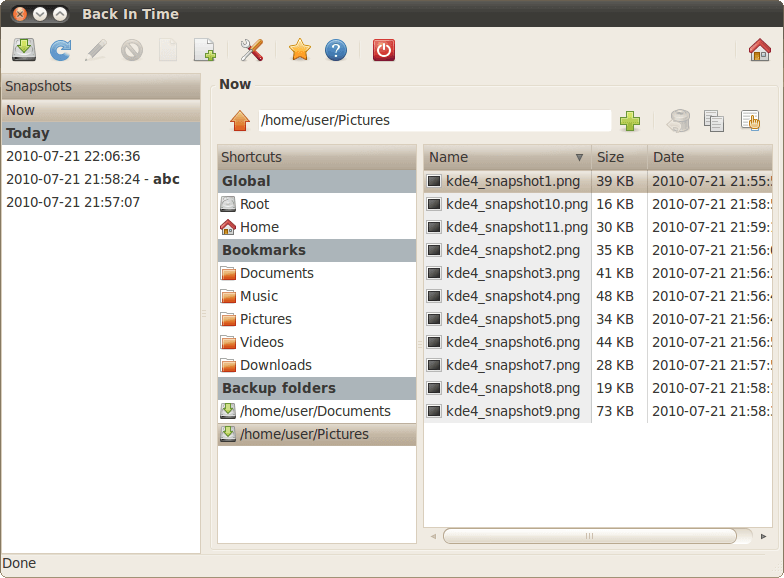
Back in time is actually a software that CLONE files of my choice to any destination. I put all my data files in HDD A and use ‘Back in time” to clone these files daily to HDD B.
I have also manually created clone of the SSD ( where all the system files are) around every 1-2 months to ensure even if something went wrong , Timeshift cannot help, I still able to restore my system.
I have also copy the data files to some offline HDDs every month or so. So I think the risk of data loss as a result of disk failure should be very low.

If the chance of a disk failure is 5%, then my chance of losing all data is 5% x 5% x 5% = 0.0125%, excluding my fourth backup in the old HDDs. Pretty Safe !!😅
Dynamic DNS service
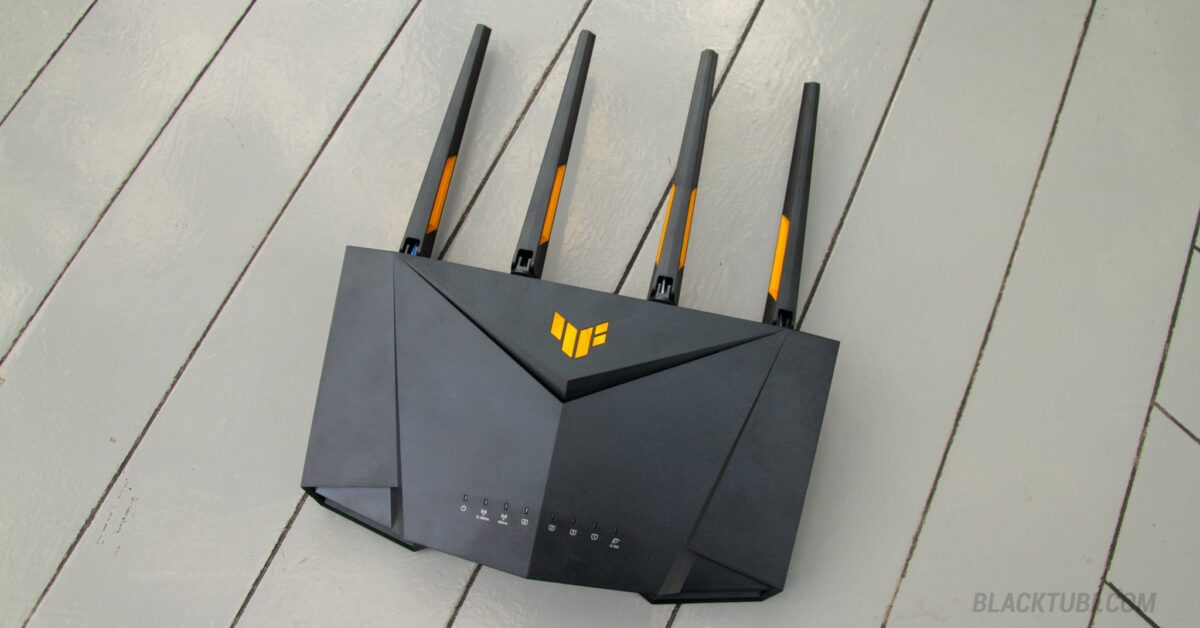
I am using a ASUS AX4200 TUF Wireless Router. It is NOT made in China like TP-link. ASUS is pricey but really reliable. (I was using Asus AC68U for 5 years before, but it’s wifi range was not enough and frequent wifi signal drop). One good thing of ASUS router is I can get a free ASUS DDNS which is ESSENTIAL to host a server behind a dynamic public IP address.
Of course I can register a domain or a DDNS which only cost as low as AU$10/ month. If it is free, why not ?
Read more about DDNS and Domain
SSH server
But how to I remotely control the server, such as doing maintenance, troubleshoot, monitor resources and update ? My Server is not connected to a display. Although in emergency, I still can comnect it to the TV via HDMI, or take the whole unit out and plug into another computer monitor.
An SSH server is ESSENTIAL for server maintenance.

SSH server is usually pre installed in Ubuntu and probably Debian as well. But install is very easy. I can easily run command, doing maintenance, montior server status using terminal.
Read more about how to configure a SSH server.
Install a SSH server is very simple.
sudo apt install openssh-server
That’s it. And then configure the SSH server by
sudo nano /etc/ssh/sshd_config
For security reason, I have changed the default SSH port. If I do not forward the SSH port, my SSH server is inaccessible from internet but only accessible from my LAN. A non-default SSH port further prevent unauthorized access to the server which is extremely important.
Also, I have a PoE security camera which I can upload footage to my server (Describe in latter section). So I have setup SFTP server for the PoE camera as well as for my computers in the LAN to share files.
This link has described the details of how to setup a SSH SFTP server. Also, chatGPT would be very helpful too. 😅
Remote desktop
Since my server is sitting in the TV cabinet and has no display. A remote desktop is very handy in addition to SSH server.

To enable remote desktop protocol (RDP) on the server, xdrp is the easiest and simple way to do it.
sudo apt install xdrp
Similar to SSH server, I have changed the default port of xdrp RDP and never enable port forwarding of this port.
sudo nano /etc/xrdp/xrdp.ini

VPN server
The ultimate truely remote control of the server is through the Internet. To ensure security, using a VPN server is ESSENTIAL.
When connected to a router VPN server, a secure tunnel is created between my device and the home network (LAN). The remote device is also treated as the same LAN just like I am connected to my home Wifi network. So I can access the server by entering the address (e.g.192.168.1.x) , my router setting (192.168.1.1) even I am actually using Internet / mobile network.
Fortunately most of the modern router has build-in VPN server and that’s all I needed.

It is very straightforward. I just created a complex username and password and export the opvn configuration file. Then import this config file in the VPN client on my device and then it is connected securely to my home network.
Since access to my VPN server means access to EVERYTHING in my network. So a strong username and password should be used.
Remote Power switch
The last resort for a failed server is to reboot. There were some hiccups since I run the server 6 months ago. Occasional unexplained system freezes, non-repsonding Nextcloud server / Apache server. If the remote SSH server still accessible, I can simply reboot the system remotely, or fix the problem accordingly. But if the SSH server is dead also, the only thing I can do is to remotely power off the server and restart .
It can be done by using a smart plug. There are numerous Wifi smart plug and it is as cheap as AU$15.

This smart plug can also monitor power consumption of the server. At the moment, I am running the server 18 hours a day. It seems that there is no point to run a server during my sleep.
The system is auto power on and off by this simple crontab command. System shutdown at 0:01am every night and the system can automatically wake up at 5:55am every morning.
01 00 * * * root /usr/sbin/rtcwake -a --date 05:55 -m off
The old Debian hardware is not really power efficient. The CPU TDP is 65w. Two 5400rpm HDDs plus the two cooling fans, RAM etc, the system use approximately 40-48w / hour, depending on loads. I have to manually lower the CPU clock to 2Ghz to achieve that. The system was using up to 60-70w per hour when CPU clock was normal (3.1Ghz). In fact, I did not see significant system performance impact.
For the electricity bill, the server cost approx AU$7.8 / month.
Applications
Nextcloud
In terms of software alternatives of Google Photo , there are a lot of choice on the market and most importantly, they are all free.
I tested Openmediavault and TrueNAS. They are both open source and community maintened. But I feel that they are not user friendly and have limited function which is not comparable to Google drive.
Finally I tried NextCloud.
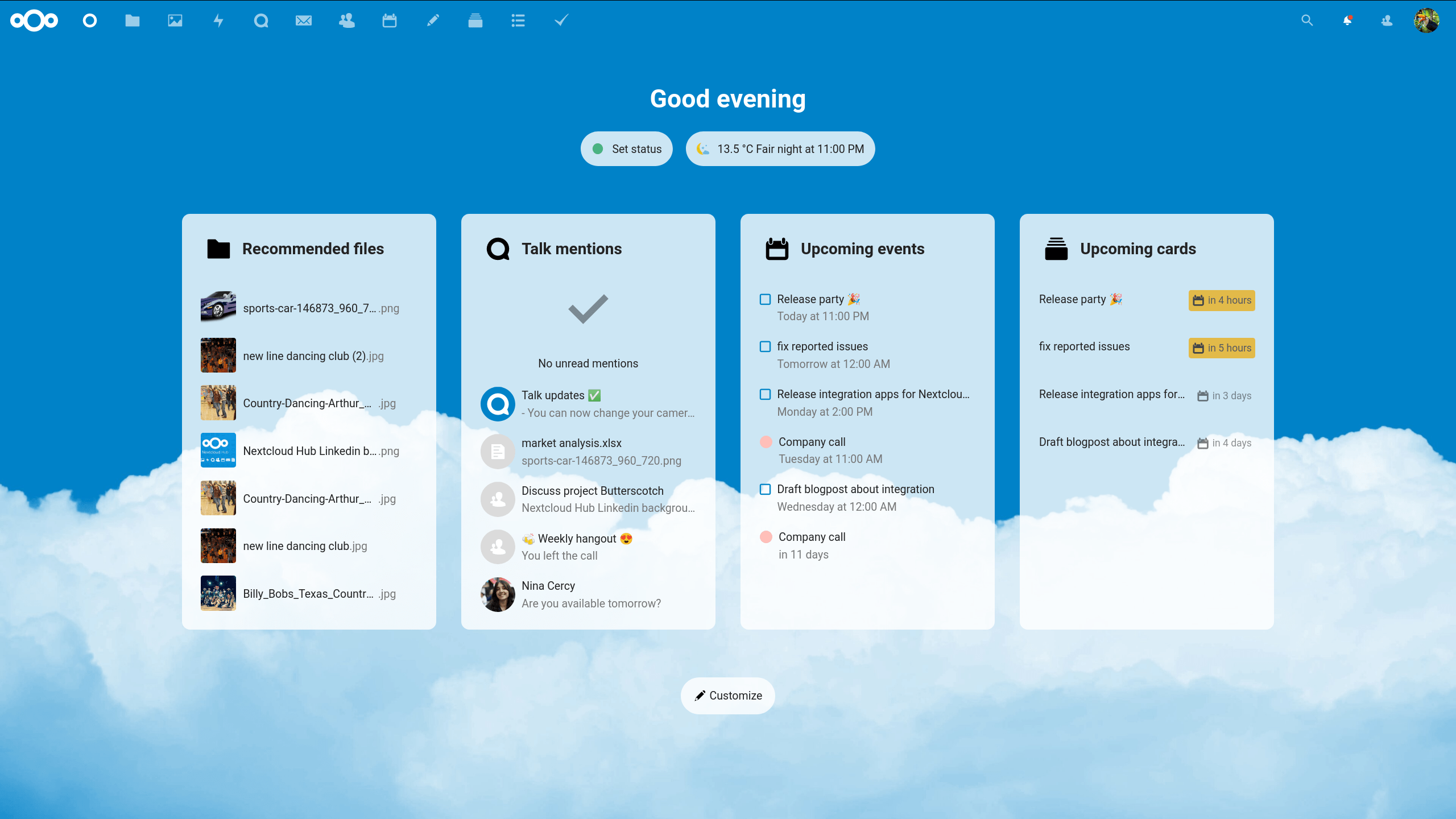
Nextcloud is a suite of client-server software for creating and using file hosting services. Nextcloud provides functionality similar to Dropbox, Office 365, or Google Drive when used with integrated office suites Collabora Online or OnlyOffice. It can be hosted in the cloud or on-premises. link
First, I have installed a Debian 12 (Bookworm) in this old fella, in the 500GB SATA SSD.
I am not an IT expert. I did use Debian / Ubuntu but not really experience. Linux system is not user friendly as Windows GUI. Terminal, command line input is necessary. It tooks me couple weeks to learn and familiar with installing Nextcloud self-host server. It involves configure and understanding of Mariadb /MySQL, PHP, configure an Apache webserver. But finally I was able to make my Nextcloud server ‘online’.
So my Nextcloud server is all set. I can remotely access my files and photos just like Google Drive .
Read more about Nextcloud
Nextcloud is more than just a file sharing server. It has it’s own “app store,” which install app according to user preferences. But for me, Nextcloud is the replacement of Google Photo and Google Drive.
For Google Photo app, I admitted that it is still the best in the market. It’s speed, easy of use, timeline, face detection and particularly sorting and content search is nothing comparable. For replacement of google photo, Nextcloud Memories app is the best. It has similar timeline function. Although it has build-in face and object detection function, they are inaccurate and slow. Still, I feel that use as replacement of Google Photo is not too bad.

However, since most of these app are community manage, it seems that the android app is managed by another team which the app hasn’t been updated for a year. Really worry it will be offline soon. 😥

Nextcloud’s build-in function is pretty impressive. It supports real-time online edit documents which is comparable to Google Doc / Google Spreadsheet. There is official build Nextcloud app in Apple and Google Store so both mobile system are compatible with Nextcloud, very important these days. Compare with Memories, I think this Android app would survive much longer.
Nextcloud is written in PHP language. Installation can be Docker or AIO. But I found that it was quite difficult to do it. Instead, I was manually installing it steps by steps follow this official guide.
I have mentioned above that the Debian server was originally intended to be a file server, an alternative of Google Drive and Google Photo. But when I was building it, I found that it can do much more than I thought.
There are numerous usage for a Debian server. From self-host game server, cloud storage, media server to even a surveillance recorder.
Surveillance NVR
I have a PoE camera and a wifi camera watching my door 24/7. The Reolink PoE camera supports local SD card recording (continous or motion trigger). The Wifi camera is an old D-link indoor camera. It does not support local storage or recording. Only cloud storage available and a monthly subscription os required
As mentioned before, free of charge is important.

There are two very popular surveillance software on the market. Blue Iris is a very powerful surveillance camera software. It supports live streaming , local recording, motion and face detection etc. I have used the trial version which was amazing. However it only has Windows version. Secondly, it cost US$39.95 for single camera and US$79.9 for unlimited camera.
No way.

The other software is Zoneminder. It is Linux based open source and it is FREE. Same as Blue Iris, it supports ONVIF cameras. It has all the same feathera as Blue Iris: motion detection, local recording (to the server HDDs), sensitivity, custom detection field and also support multiple cameras.
I was following this guide to configure the Zoneminder. Not a difficult job as I already has a working Apache2 and Mariadb. It consumed a bit of the server resources, approximately 30% usage of a single core CPU.
The Good thing is, I don’t need to pay Dlink subscription to see my camera footage and my storage is unlimited. The down side is that there won’t be any recording when my server is asleep during the midnight. But that’s Okay as my Reolink camera actually is operating 24/7 and it has better performance.
JellyFin media server

JellyFin is a simple but powerful media server. It is particularly useful when playing media files in smart TV.
Read my another blog post for installing Jellyfin on a Samsung Tizen Smart TV.
Install Jellyfin on Debian is super simple:
apt install jellyfin will do the job.
Of course, don’t forget to start the system service.
sudo systemctl start jellyfin
Then type the http://server.ip:8096 in the browser and Jellyfin server should be online.
Since I am not accessing the media server from the Internet and there isn’t much sensitive data can be obtained, changing the default port seems unnecessary.
Jellyfin use .nfo as source of metadata and it downloads the media picture, description, genres etc based on it. Sometimes it may recognised the media as wrong movie and the generate wrong poster. But it can be recified by simply input the correct imdb number to the corresponding media in the setting section.
JellyFin may use CPU to transcode video files. I have no problem playing Full HD and even 2K movie using that old CPU from 2012. But 4K movie could be extremely laggy and sometimes unable to play.
Time to upgrade? 😁
Music Server – Navidrome
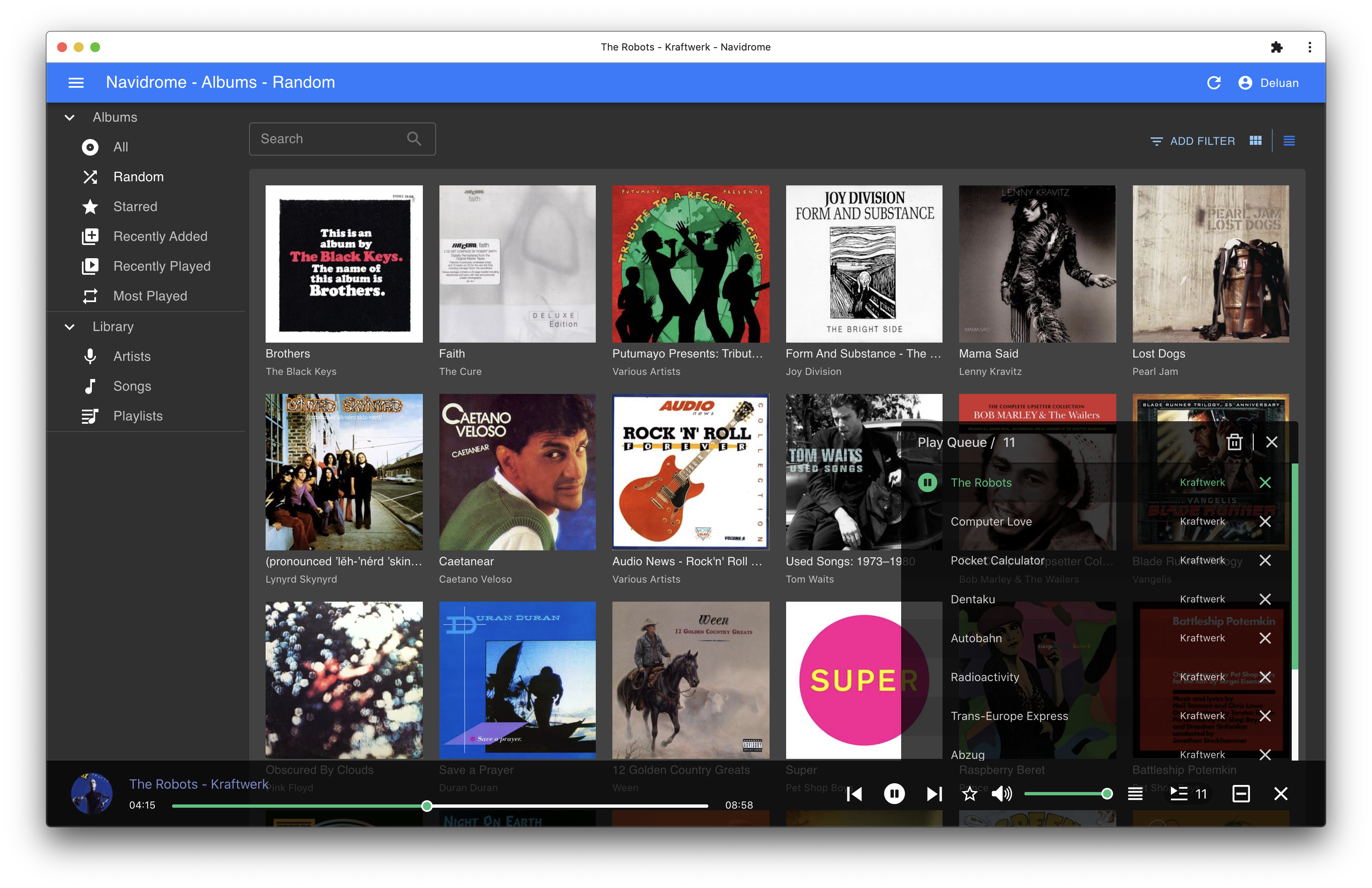
Music server is relatively simple and has low resource demand. I am using Navidrome which is also very simple.
Again, apt install navidrome will do the job. Then:
sudo nano /etc/navidrome/navidrome.toml
Then change the music folder my desire folder path. Unfortunately Navidrome can only support one music library.
Navidrome is Compatible with all Subsonic/Madsonic/A irsonic clients.4
Navidrome ‘s default port is 4533. Open a browser and then I can access all my music. Most importantly, I can use different android streaming client to access Navidrome music server. For example, Symfonium, DSub, streamMusic, Ultrasonic etc to stream my music.
Torrent client
A server running 18 hours a day can be a good candidate for a torrent server / client. It is highly recommend to run a torrent server / client behind a VPN. For that reason, I need to set up a VPN service for my torrent client.
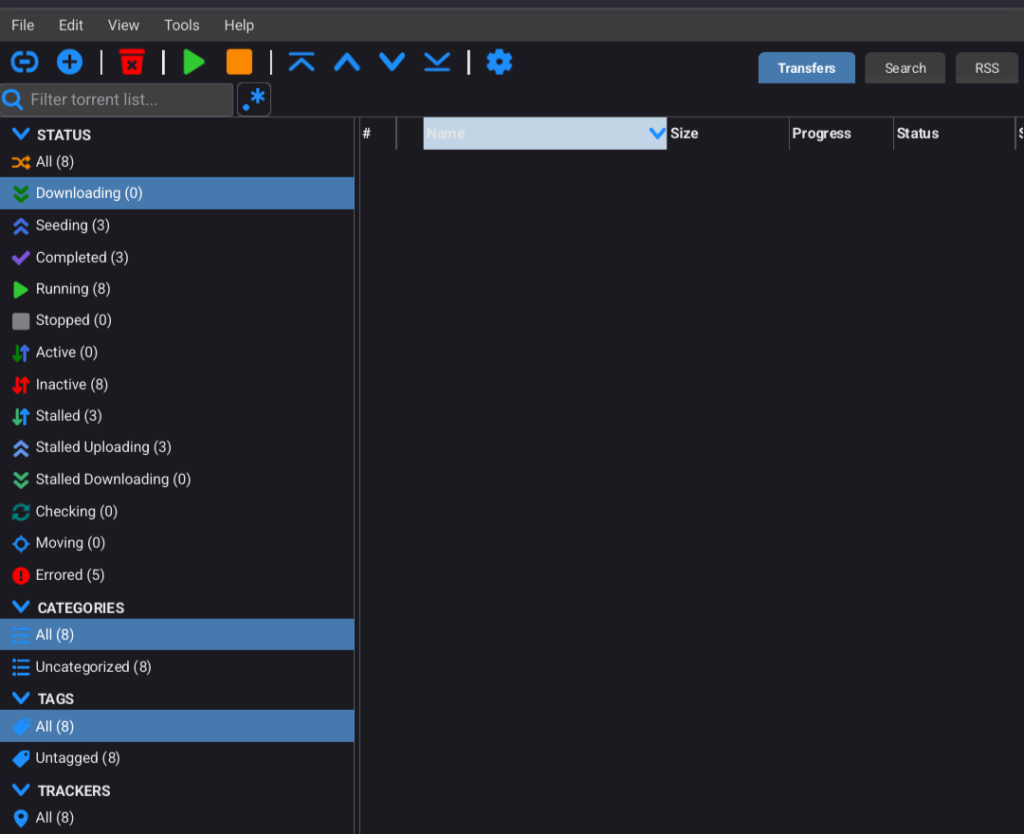
Not the whole server. Why ?
I am using Surfshark VPN. It is not as costly as NordVPN and that’s why it speed is limited to around 180Mbps (Download)/18Mbps (upload) and high latency (Although my ISP speed is only 250Mbps). It has quite significant impact on server performance.
I have tried two methods to run a torrent client behind a VPN.
- Virtual Machine
Virtual machine inside an old fella sound like a nightmare. I chose AntiX linux because it is Debian base which I am very familiar with. Secondly it can run with as low as 512MB of RAM. Of course it would be laggy. Also, setting up a VPN was a mess. AntiX does not use systemclt and lack of basic service that Debian has.
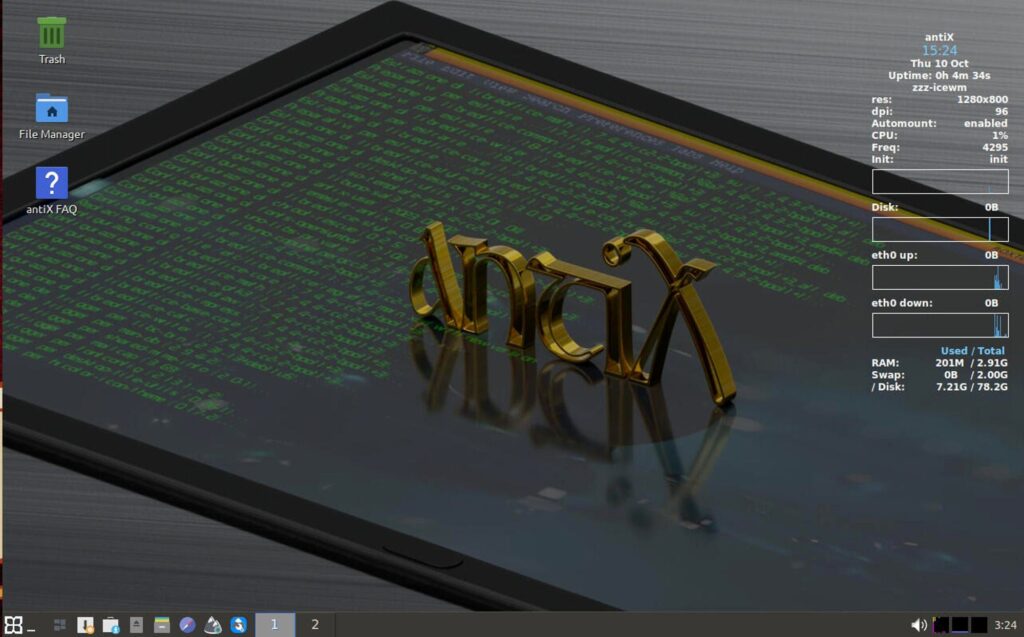
With the aid of ChatGPT, I am still able to connect the VM to VPN and running headless qbittorrent. In terms of server resource, headless VM was only using 10% of CPU which was very impressive. But controlling the VM through remote SSH server was a hit and miss.
- Docker
Docker is a container in an operation system. Programs run in a container will not affect the OS. Therefore, docker is usually used for testing programs. The benefits of container is that it consumed very very small system resource, not like a VM.
Docker compose is a relatively simple way to deploy docker container.
sudo nano docker-compose.yml
Edit this file, launch and stop the docker-compose using this command:
sudo docker-compose up -d
sudo docker-compose down
I am using Gluetun to create VPN tunnel and qbittorrent as torrent client.
In contrast with VM, docker is much easier to deploy and consume very little system resource. And it is also more stable than VM. Qbittorrent can be launched as a webclient (which is accessible in a browser). Also, the qbittorrent android app which make remote access torrent client much much easier.
Last but not least,
Self hosted WordPress server
Similar to creating Nextcloud server, I created my self-hosted WordPress server using Apache and Mariadb.
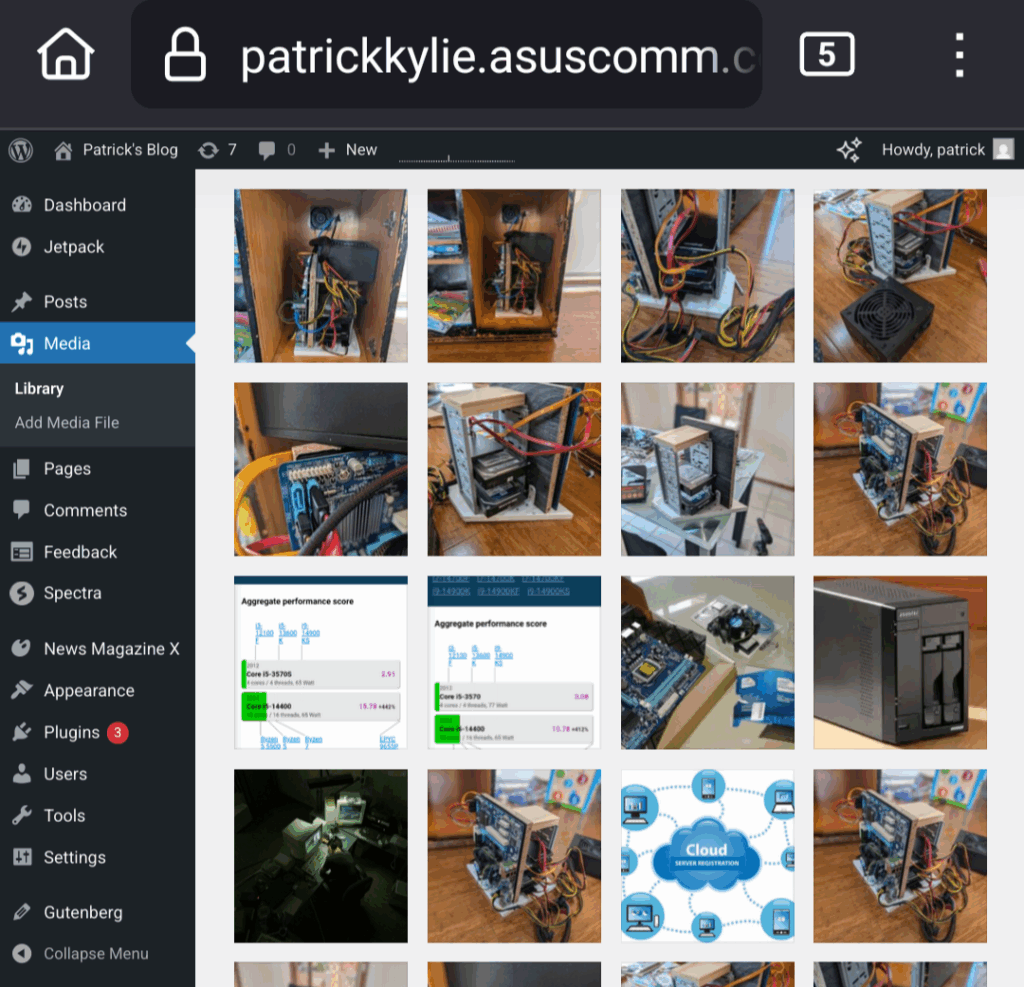
As there is no official instructions, ChatGTP helps a lot. As before, it is much simple than creating a Nextcloud server. All I need to do is to download the wordpress archive from WordPress.org. And it’s free.
sudo wget https://wordpress.org/latest.tar.gz
The blog you are reading now is my self-hosted WordPress server.
😎
- https://www.google.com/drive/terms-of-service/ ↩︎
- https://policies.google.com/privacy#infosharing ↩︎
- https://www.synology.com/en-global/company/legal/privacy ↩︎
- https://www.navidrome.org/docs/overview/ ↩︎
Postface
I finally decided to “upgrade” the server. I have used an used AMD Ryzen 5 5600G from my daughter ‘s PC, with a new B550M-k AM4 motherboard, pairs with 16GB DDR4 RAM.
Ryzen 5 5600G is a 6 core 12 thread 7nm CPU operated at 3.9Ghz. It’s TDP is 65w, the same as the old Intel 3570s.
Geekbench score (multicore) of the new system was 7452 where the old Intel 3570s only score 2055 . That’s more than 3-4 times improvement.
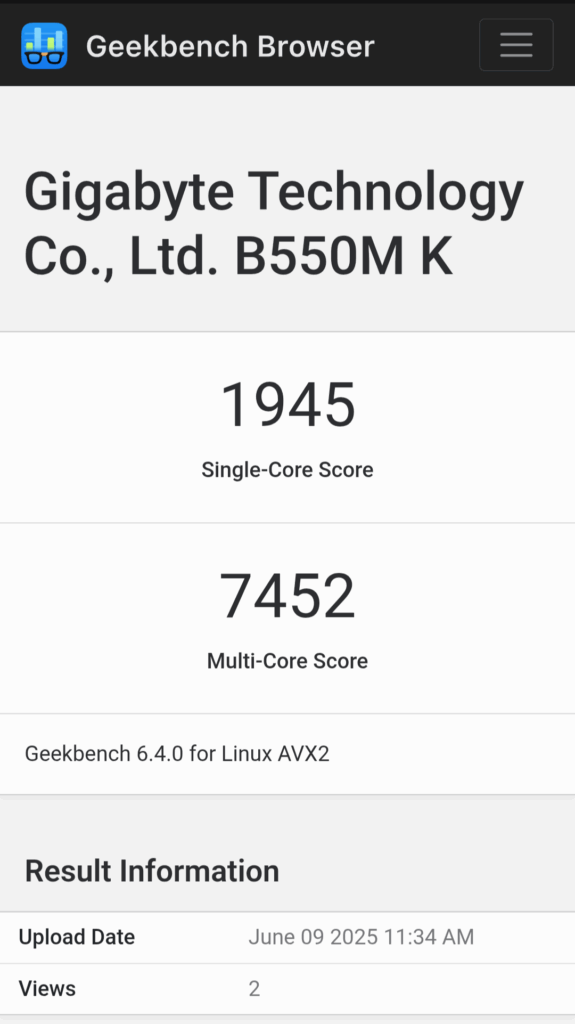
Now the Memories app can load the picture almost instantly, as fast as Google Photo. Files browsing is much smooth and the whole system seems “awake” and very responsive. Playing 4K video in Jellyfin without hesitation. 😎👍